


Most marketing teams use Google Analytics to confirm what they already believe.
- Traffic is up, so the campaign worked.
- Bounce rate dropped, so the redesign helped.
- Sessions are growing, so organic is healthy.
The problem with that approach is that confirmatory analysis misses the signals that would actually change how you operate.
The underused value in GA4 is not hidden in obscure reports. It is in the gap between what the data says and what most teams bother to ask of it.
This piece covers the analytical habits and configurations that separate teams making revenue decisions from data versus teams generating dashboards for quarterly reviews.
Setup First: Configuration Insights Most Teams Skip
1. The Foundational Problem: Measuring Activity Instead of Outcomes
Before getting into specific reports and features, the framing matters.
Most GA4 setups are configured to measure what is easy to measure:
- page views,
- sessions,
- users, and
- traffic source.
These are activity metrics. They tell you what happened on your site. They do not, by themselves, tell you whether any of it contributed to pipeline, revenue, or retention.
The configuration work required to make GA4 a genuine business intelligence tool is not technically complex. But it requires someone to make deliberate decisions about what outcomes actually matter for your business and then build the measurement infrastructure to track them.
That work gets skipped often because it requires cross-functional alignment between marketing, product, and engineering.
The consequence: Teams spend hours analyzing data that cannot answer the questions leadership is actually asking.
2. Conversion Tracking: The Configuration Most Sites Get Wrong
If your GA4 account is tracking "goal completions" as a single aggregate event, you are missing the analytical resolution needed to make good optimization decisions.
GA4's conversion tracking model centers on key events, which are simply events you have marked as conversions. The value of this system is that it allows you to distinguish between different types of valuable actions:
- a newsletter signup,
- a product demo request,
- an e-commerce purchase,
- a phone call,
- a document download.
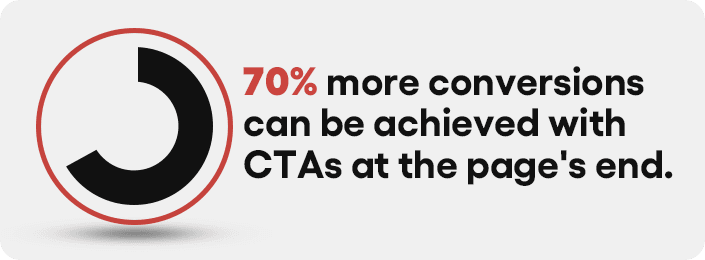
Source: Wiser Notify
Each of these has different commercial significance, and treating them as undifferentiated "conversions" obscures the analysis.
The better configuration: Define your key events in a hierarchy that reflects your actual funnel.
For an e-commerce store, that might be:
- add-to-cart,
- initiation of checkout,
- purchase, and
- post-purchase review submission.
For a B2B SaaS company:
- free trial signup,
- feature activation, and
- paid conversion.
Each event should have a monetary value assigned where possible, which enables revenue attribution analysis across channels and content types.
What most setups miss: Micro-conversions that signal intent before the primary conversion event. A user who downloads a sizing guide, adds a product to a wishlist, or engages with a configurator tool is showing purchase signals that will never appear in a standard "purchase" conversion event. Tracking these micro-conversions allows you to identify pages and content that are commercially productive even when they do not directly close a transaction.
The practical mistake: Marking too many events as key conversions, which inflates conversion counts and makes comparative analysis meaningless. Be deliberate about what qualifies as a key event. If everything is a conversion, nothing is.
Analysis Insights: Where Revenue Leaks Show Up
3. User Journey Analysis: Where Revenue Is Actually Lost
The question most e-commerce and lead generation teams need to answer is not "how much traffic are we getting?" It is "where in the buying process are we losing people, and why?"
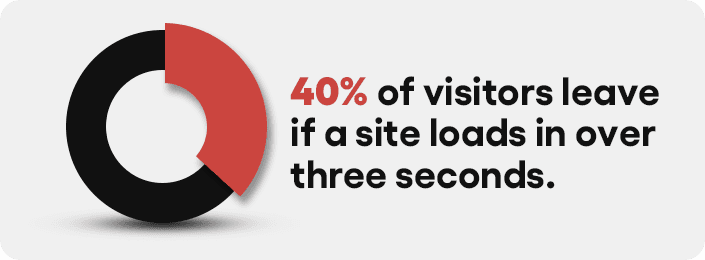
Source: Browser Stack
GA4's path exploration report (formerly the User Flow report in Universal Analytics) lets you map the sequence of pages or events a user moves through before converting or exiting.
The commercially valuable version of this analysis is not the default view of all users. It is a segmented view that compares users who converted against users who did not.
The pattern this analysis typically surfaces: users who convert follow a relatively consistent path through a small number of high-value pages. Users who do not convert often get stuck at a specific junction — frequently a product page, a pricing page, or a checkout step — and exit without completing the action.
Identifying those exit points is straightforward. Understanding why users exit there requires a combination of the quantitative data in GA4 and qualitative insight from session recording tools, user surveys, or customer interviews.
GA4 tells you where the leak is. It does not tell you the cause. Teams that try to fix conversion problems based purely on analytics data without qualitative validation often optimize for the wrong variable.
An underused application: Use the path exploration report to identify content that unexpectedly appears in converting user journeys. If a specific blog post or product comparison page consistently appears in paths that end in purchase, that page is contributing commercial value that your attribution model probably is not capturing. It deserves investment in optimization and internal linking.
4. Hidden Conversion Killers: Device and Browser Segmentation
This is one of the most reliably useful analyses in GA4 and one of the most consistently neglected.
Open GA4's Tech Details report and look at conversion rates segmented by device category, operating system version, and browser. In most cases, you will find meaningful variation.
Conversion rates on iOS often differ from Android. Older browser versions sometimes show dramatically higher exit rates at specific funnel steps. A specific combination of device and OS that represents 8% of your traffic might be converting at one-third the rate of your overall average.
The reason this matters commercially: If 10% of your traffic is converting at a fraction of the rate of your remaining traffic due to a rendering or functionality issue, fixing that issue is a conversion rate optimization win that requires zero additional traffic. The revenue opportunity is already in the funnel. You are just failing to capture it.
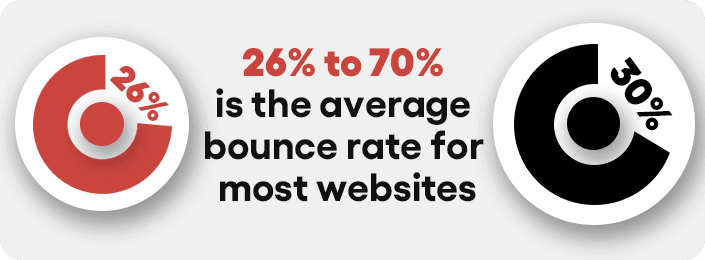
Source: Hubspot
The diagnostic process: When you identify a device or browser segment with anomalous conversion behavior, the first step is to reproduce the experience on that device and browser. Many issues are immediately obvious when you actually visit the site on the affected configuration:
- a form that does not render correctly,
- a sticky navigation element that covers a CTA, and
- a payment method that is not available on certain mobile browsers.
What to watch for specifically: Exit rate spikes at checkout on specific mobile devices are often payment integration issues. High bounce rates on a specific browser version often indicate a JavaScript error that is silently breaking page functionality. These are not SEO problems or content problems. They are engineering problems with direct revenue impact.
5. GA4 and Search Console Integration: The Organic Intelligence Layer
GA4's integration with Google Search Console is one of the most underused analytical setups in digital marketing. Most teams have both tools but have never connected them.
Once linked, you can analyze which specific organic search queries drive not just clicks but on-site conversions. This is the difference between knowing "organic traffic is up" and knowing "searches for [specific keyword] produce a 4.2% conversion rate, while searches for [adjacent keyword] produce 0.8%."
The metric that matters more than average load time: Core Web Vitals segmented by real user experience, specifically Largest Contentful Paint (LCP) at the 75th percentile across mobile and desktop.
GA4 incorporates Core Web Vitals data when paired with Google Search Console, and the combination of performance data with ranking data is where the most actionable insights live. A page with poor LCP scores is simultaneously delivering a bad user experience and carrying a ranking penalty. Fix it, and you improve both conversion and visibility.
Common diagnostic failure: Teams identify slow pages and focus optimization effort on server response time or image compression while leaving render-blocking JavaScript untouched. JavaScript execution is frequently the primary load time issue on modern sites, particularly for pages that load multiple third-party scripts (chat widgets, analytics tags, heatmap tools, retargeting pixels). A tag audit often reveals significant page weight that was added incrementally with no accountability for its performance cost.
Reporting and Maintenance Insights
6. Filtering Out Internal and Non-Human Traffic
This is a configuration issue with real analytical consequences, and it is surprisingly common for it to be handled incorrectly or not at all.
If your team regularly visits your own site for testing, content review, or account management, their sessions appear in your analytics data. If you have significant organic traffic volume, a portion of that will be bot traffic.
Neither represents actual user behavior, and their inclusion inflates session counts, distorts engagement metrics, and creates misleading trend data.

Source: Cloud Flare
The correction in GA4: Create a filter to exclude internal IP addresses from your reporting view. If your team works from a consistent IP range or uses a VPN with consistent exit IPs, this is a straightforward implementation.
- For fully remote teams with variable IPs, the alternative is to set a custom dimension that flags internal users, which allows you to filter them out in exploration reports.
- For bot traffic, GA4 has a default "exclude known bots and spiders" setting that handles the most common sources.
- For sites with unusual bot traffic patterns, the traffic source and geographic distribution of sessions will reveal anomalies that warrant manual investigation and custom filter rules.
Why this matters for SEO analysis specifically: If bot traffic is inflating your organic session counts, your organic conversion rate will appear lower than it actually is. This can lead to incorrect conclusions about the commercial quality of your organic traffic and misallocated optimization effort.
7. Custom Alerts: Your SEO Early Warning System
GA4 allows you to configure custom insights that trigger notifications when specific metric thresholds are crossed. This is not a complicated feature. It is also not one that most teams use effectively after initial setup.
The commercially relevant alert configurations:
Conversion rate alerts:
Notify when the key event conversion rate drops below a defined threshold for a sustained period. A 20% drop in checkout completion rate that you detect within 24 hours allows you to investigate and fix the issue before it compounds into a significant revenue loss. The same drop detected a week later has already cost you.
Traffic source anomalies:
Alert when organic traffic to high-revenue pages drops meaningfully. A ranking loss on a primary commercial keyword often shows up in traffic data before it surfaces in rank tracking tools. Teams using SEO analytics services will often catch these drops faster through integrated rank monitoring. Early detection allows for faster response.
Segment-specific alerts:
Conversion rate drops on specific device types or in specific geographic markets are often the first signal of a technical issue or a localized problem (a payment provider outage in a specific region, for example).

The failure mode for custom alerts is setting thresholds that are either too sensitive, generating alert fatigue, or too broad, missing meaningful changes in the noise. Start with alerts for your highest-revenue pages and your most important conversion events, and calibrate thresholds based on observed normal variance before expanding coverage.
8. Content Grouping: Strategy Over Pages
Individual page performance analysis has a fundamental limitation: it tells you how a page is performing, not how a content strategy is performing.
GA4's content grouping feature allows you to assign pages to logical categories — for example, "product pages," "category pages," "buying guides," "comparison content," "blog posts" — and then analyze performance at the group level.
The strategic value is significant. You can see which content types are driving the most conversion-path traffic, where different content groups sit in the user journey, and which categories have the strongest engagement-to-conversion ratios.
For a typical e-commerce or B2B site, this analysis often reveals a meaningful asymmetry: Certain content types drive substantial traffic but contribute little to conversions, while other content types have lower traffic but appear consistently in converting user journeys. That asymmetry should inform content investment decisions.
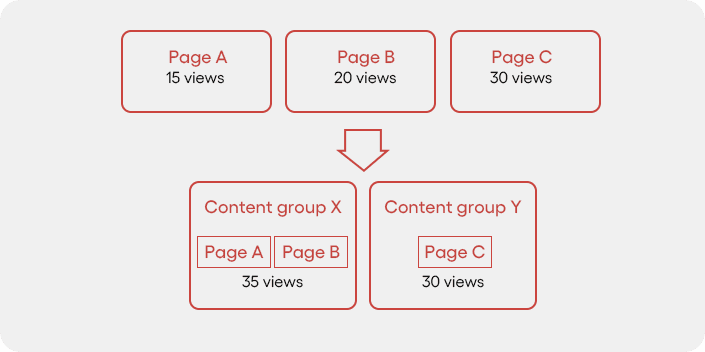
The implementation consideration: Content grouping requires either a consistent URL naming convention that allows regex-based grouping rules or manual assignment via a custom dimension set in your tag configuration.
- For sites with clear URL structures, implementation is quick.
- For sites with opaque URL patterns, some engineering involvement is needed.
How to actually use the data: Once groups are configured, build an exploration report that shows each content group's contribution to key events across a 90-day window. Cross-reference with organic traffic share to understand which groups are delivering commercial value relative to their traffic cost. This is the kind of analysis that informs quarterly content strategy decisions.
9. E-Commerce Tracking: The Full Funnel Picture
If you run an e-commerce site and you are not using GA4's enhanced e-commerce tracking, you are analyzing roughly half of the available data about your sales performance.
Enhanced e-commerce tracking captures the full product interaction funnel:
- impressions (how often a product appears in a listing or search result on your site),
- clicks,
- product detail page views,
- add-to-cart events,
- checkout steps, and
- purchases.
Each stage of this funnel can be analyzed individually and in sequence, which surfaces precisely where products are losing commercial momentum. Pairing this data with technical SEO fixes — particularly canonical tag corrections — often reveals a compounding improvement: more qualified traffic landing on the right pages, converting at higher rates.
The patterns this analysis reveals that standard purchase tracking cannot:
Impression-to-click rates by product position show which products are getting views but failing to generate interest. A product that appears frequently in category listings but has a low click rate has a thumbnail, title, or price point problem, not a traffic problem.
Add-to-cart abandonment rates by product identify which specific products are generating consideration but not completing purchase. This can reflect pricing, shipping cost reveals at the cart stage, or a product detail page that is not answering the questions buyers need answered before they commit.
Checkout funnel drop-off by step is the most commercially direct analysis: at which specific step in the checkout process are you losing the most transactions? Step three of four, with high drop-off, often indicates:
- a trust issue (payment security concerns),
- a friction issue (too many required fields), or
- a surprise issue (shipping costs not disclosed until late in the process).
Each of these is a fixable problem with measurable revenue impact. Enhanced e-commerce tracking makes them visible. Standard traffic analysis does not.
10. Custom Dashboards for Smarter Reporting
GA4's default reports are designed to be broadly useful for all users, which means they are optimized for none of them in particular. For any team with specific commercial objectives, custom reports and dashboards are worth the configuration time.
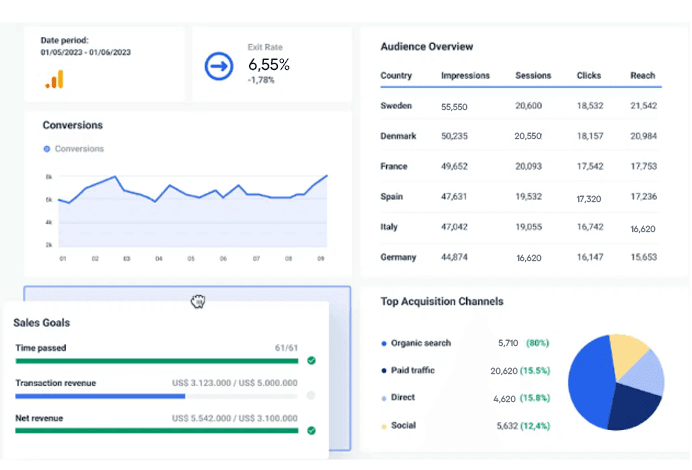
The principle for designing useful dashboards: Start with the business question, not the data. What is the decision that this dashboard should inform?
- If the answer is "our high-intent organic pages contributing to revenue," build a dashboard that shows organic traffic, conversion rate, and revenue for your target keyword clusters.
- If the answer is "which acquisition channels have the best LTV characteristics," you need a dashboard that connects session source to post-purchase behavior over time.
GA4's exploration reports provide a flexible canvas for this kind of analysis. The funnel exploration, segment overlap, and path exploration tools are the three most commercially useful for most marketing and growth teams.
A practical custom report configuration that most teams should build but do not: A landing page performance report shows, for each major landing page:
- organic traffic volume,
- engagement rate,
- key event rate, and
- revenue contribution.
This single view tells you which pages are earning their SEO investment and which are generating traffic without commercial output. It should inform where you allocate ongoing optimization effort.
Your GA4 Setup May Be Hiding Revenue Gaps — Most accounts we review have misconfigured conversion events, unfiltered bot traffic, or attribution models that misrepresent channel performance. A focused GA4 configuration audit identifies exactly what's wrong and what to fix first. Book a free analytics audit →
Frequently Asked Questions
How do I connect Google Search Console to GA4 and what does it unlock?
Link GSC to GA4 through Admin > Property Settings > Search Console Links. Once connected, you can see which organic search queries drive not just clicks but actual conversions — matching keyword-level intent data from GSC with on-site behavior data in GA4. This combination reveals which search terms are commercially productive versus which only generate traffic without downstream value.
What events should every website mark as key conversions in GA4?
Every site should mark its primary revenue action (purchase, form submission, or call), at least one micro-conversion signaling intent (add to cart, document download, pricing page view), and an engagement threshold (session longer than 2 minutes, or 3+ pages viewed). Marking too many events as conversions inflates counts and makes optimization decisions harder — be deliberate.
How do I know if my GA4 is tracking correctly after setup?
Use GA4's DebugView (Admin > DebugView) to see events firing in real time as you navigate your site. Cross-check key conversion events against your actual backend data — if GA4 shows 100 purchases and your payment processor shows 85, the discrepancy reveals measurement gaps. Also verify your internal IP filters are active to prevent team activity from distorting your data.
What is the difference between GA4 attribution models and which should I use?
GA4 offers last click, first click, linear, and data-driven attribution models. For most businesses, data-driven attribution is most accurate — but it requires at least 400 conversions over 30 days to function reliably. Check and update your model under Admin > Attribution Settings. The default last-click model systematically overstates the role of bottom-funnel paid channels and understates brand-building content.
How do I reduce bot and spam traffic in GA4 reports?
Confirm the "exclude known bots and spiders" filter is enabled under Admin > Data Streams > your stream > Configure tag settings. Create an IP filter for internal team traffic under Admin > Data Filters > Internal Traffic. If you see sessions from unusual geographies with 100% bounce rates and 0-second durations, investigate those sources directly in the Traffic Acquisition report.
Data As a Management Tool, Not a Marketing Deliverable
The underlying issue with how most teams use Google Analytics is that the output of their analysis is a report rather than a decision.
Good analytics practice closes the loop: You identify something in the data, you form a hypothesis about what is causing it, you make a change, and you measure the effect.
That loop requires people with the authority to act on what the data shows and the discipline to actually test hypotheses rather than just observe.
GA4 has the depth to support serious commercial analysis. The 10 insights above represent the configuration and analytical habits that separate teams who use it as a genuine intelligence tool from teams who use it to generate dashboards.
The bottleneck is rarely the tool. It is the analytical habits and organizational structures that determine whether data actually changes how teams operate.
Start with the two or three insights that are most relevant to your current business question. Fix the configuration gaps. Then build the reporting habits that make the analysis a decision-making input rather than a quarterly deliverable.
Book a GA4 Configuration Audit — We'll review your setup, identify measurement gaps, and deliver a prioritised fix list within 5 business days. Book a free strategy call →

Aditya Kathotia
Founder & CEO
CEO of Nico Digital and founder of Digital Polo, Aditya Kathotia is a trailblazer in digital marketing. He's powered 500+ brands through transformative strategies, enabling clients worldwide to grow revenue exponentially. Aditya's work has been featured on Entrepreneur, Economic Times, Hubspot, Business.com, Clutch, and more. Join Aditya Kathotia's orbit on LinkedIn to gain exclusive access to his treasure trove of niche-specific marketing secrets and insights.